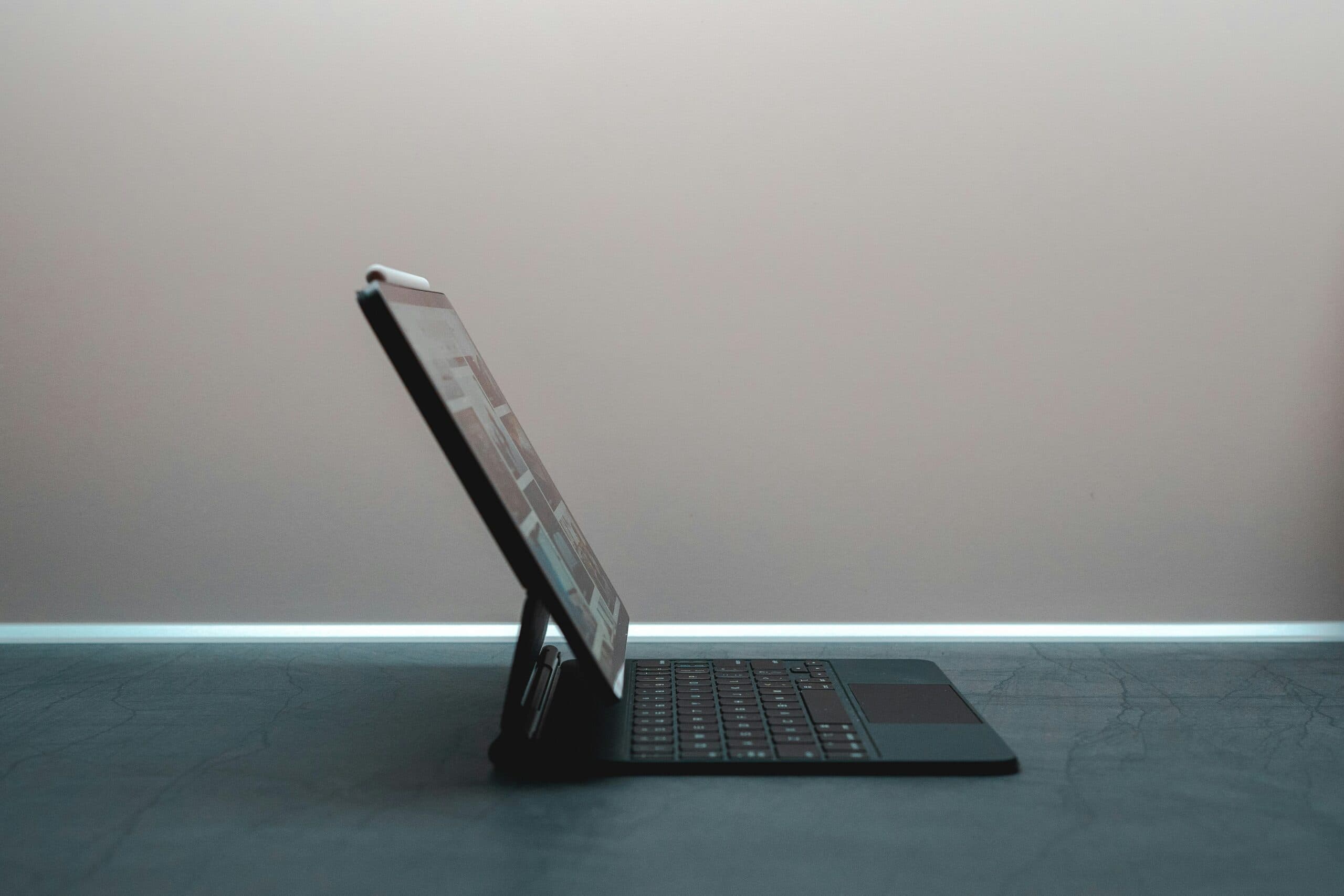
Building a Device-Agnostic Web Development Setup 2025 Edition: My Journey with an iPad
Originally published at https://medium.com/@benlobaugh/building-a-device-agnostic-web-development-setup-2025-edition-my-journey-with-an-ipad-611a5d2eb505
Over the past decade, I’ve written about my unconventional journey as a developer using an iPad for web development. To me, being device-agnostic is the ultimate freedom — working from anywhere, on any device. I’ve even debugged critical issues from my phone, riding a bus in Seattle — before mobile tools had evolved to what we see today.
While my setup has evolved with time, the core components remain simple: a remote server, SSH, Vim, and a terminal session manager. It’s a reliable system, but as new tools and IDEs have emerged, I’ve often felt like the “grandpa coder.” My setup can handle everything the modern ones can (and often more), but I don’t have the shiny new IDE. It’s not a problem for me — yet, to better support my team, I’ve started integrating more modern tools. This article will walk you through the upgraded stack I’ve adopted, showing you how you can build a fully mobile, device-agnostic development environment too.
The Heart of the System: An Ubuntu Server Running Docker
At the core of my development setup is a remote server running Ubuntu, powered by Docker. Over the years, I’ve had different servers, but today I rely on two: one hosted on Digital Ocean and the other in my home network. Neither is particularly powerful; one is an old desktop, and the other is a modest droplet. Yet, their power lies in their scalability. I can resize the Digital Ocean droplet to handle heavy loads and scale it back down without breaking the bank. This flexibility has enabled me to handle massive data crunching affordably.
Enter the New Kid: VS Code Server
For years, I was the lone Vim user on my team — resistant to adopting VS Code despite its popularity. But this year, I gave it a try. And I get it now. VS Code is a robust, feature-packed editor, and the game-changer is that it can run as a web app in the browser. Thanks to Docker images from linuxserver.io, setting up VS Code is a breeze. The best part? It can be customized with all the extensions you’re used to, right in the browser. A simple setup that brings a lot of power to your development workflow.
Browsing: Not Your Old Nightmare
Browser compatibility used to be a developer’s nightmare. Today, most major browsers support the same functionalities, and for those few quirks, there are libraries to smooth things over. I’ve found Safari on the iPad to be sufficient for most tasks. Chrome is available too, though it lacks developer tools. But don’t worry — there’s an app for that. You can install extensions that add dev tools back to Safari. Still not enough? Docker and linuxserver.io offer a Firefox Docker image that lets you run a full Firefox instance on your remote server, complete with desktop developer tools.
Need more? Enter the Guacamole project by Apache. It allows you to run multiple operating systems and browsers from a single browser window — perfect for testing across different environments without leaving your device.
Docker: The Secret Sauce for Seamless App Hosting
Docker deserves a special mention. Gone are the days of struggling with incompatible software versions. With Docker, I can run different versions of programming languages side by side — without cluttering my host machine. Want a PHP server running on port 80? Spin up a PHP Docker container. Need multiple Python apps, each with different version requirements? No problem — Docker handles it. It’s the ultimate tool for isolated, portable, and repeatable environments.
Docker also lets you run a multitude of apps, both web-based and desktop. Want to try out a new app? Spin it up in Docker and test it safely, without worrying about messing up your system.
The Caveats: Connectivity and Keyboard Shortcuts
No setup is perfect. There are two main caveats to my mobile development rig:
Always-on Connection: My system relies on a constant connection to my remote development server. It’s not a big deal today, but ten years ago, it felt like a potential obstacle. With everything needing an internet connection now, it’s less of a concern.
Keyboard Shortcuts: Since my dev stack runs in a browser, some keyboard shortcuts don’t behave as expected. As a Vim user, it’s an occasional frustration, but it’s manageable. If you’re not accustomed to keyboard-driven navigation, this might not be an issue for you at all.
Making It Work: A Practical Setup with Laravel
Now for the fun part: how does this all come together in practice? Let’s walk through setting up a Laravel development environment — though the concepts I’ll show can be applied to most containerized apps. Laravel is a popular PHP framework, but the principles behind this setup can easily be adapted to other tools and systems.
Here is the demo setup:
- Ubuntu server running Docker and docker-compose
- The VS Code image from linuxserver.io
- A full Laravel app and server image from Bitnami
- The Firefox image from linuxserver.io
Are you ready? Do not blink, this will be so fast to get running that you may miss it!
- ssh into the server (I use the Termius app on my iPad)
- Create a directory for the dev env:
mkdir laravel-demo - Change into that directory:
cd laravel-demo - Create a
docker-compose.ymlfile with the following contents (this is where I still get my beloved vim 🙂
version: "3.8"

services:
    code-server:
        image: lscr.io/linuxserver/code-server:latest
        container_name: code-server
        environment:
            - PUID=1000
            - PGID=1000
            - TZ=Etc/UTC
            - PASSWORD=password #optional
            - DEFAULT_WORKSPACE=/html
        volumes:
            - ./vscode:/config
            - ./html:/html
        ports:
            - 8443:8443 # Map port 8443 to access VS in browser
        restart: unless-stopped
    json-cms-app:
        image: bitnami/laravel:latest
        container_name: json-cms
        ports:
            - "8444:8000" # Map port 8444 to access the app in browser
        environment:
            - LARAVEL_SKIP_DATABASE=yes
            - LARAVEL_DATABASE_TYPE=sqlite
            - DB_DATABASE=/app/database/database.sqlite
        volumes:
            - ./html:/app
    firefox:
        image: lscr.io/linuxserver/firefox:latest
        container_name: firefox
        security_opt:
            - seccomp:unconfined #optional
        environment:
            - PUID=1000
            - PGID=1000
            - TZ=Etc/UTC
        ports:
            - 8445:3000 # Map port 8445 to access Firefox in browser
            - 8446:3001
        shm_size: "1gb"
restart: unless-stopped- Start it all up with: `docker-compose up -d`
You’re now ready to fire up your browser and start coding your shiny new app! That wasn’t so hard, was it? Here’s what you have now:
- VS Code — http://<ip>:8443
- Laravel Site — http://<ip>:8444
- Firefox — http://<ip>:8445
Simply replace <ip> with the IP address or domain of your server to connect to each service. The beauty of this setup is its versatility. You can add the docker-compose.yml file to any project and spin up an environment in seconds. Just tweak the ports or run one project at a time. Feeling adventurous? Set it up behind a proxy like Traefik to access services with sleek (sub)domains — that’s how I do it, and it works seamlessly.
And there you have it — my updated “modern” iPad web development rig for 2025. It’s been rock-solid for me, and I couldn’t be happier with the freedom it provides. The ability to code from any device, without the need for elaborate setup, has been a game-changer. Even devices that traditionally can’t run the dev environments I need are now part of my workflow — well, in a manner of speaking!
Perhaps the greatest peace of mind comes from knowing that if something happens to the device I’m coding on, nothing is lost. I can be back up and running in minutes, right where I left off. This setup has made my development workflow not just mobile, but resilient — true freedom for a developer in today’s fast-paced, interconnected world.